Queries
Overview
Access detailed information about payments, checkouts, onboarding applications, accounts, and other resources using flexible queries. Filter and sort data to find exactly what you need:
- Filter by multiple criteria: date ranges, statuses, amounts, and more.
- Sort results: order data in ascending or descending order.
- Select specific fields: choose which data fields to show.
- Paginate efficiently: to navigate large datasets without impacting the performance. See how pagination works for more details.
All queries endpoints follow a consistent pattern across resources, both via API and in the Getpaid Dashboard, making it easy to work with different types of data using familiar request structures.
Steps
1. Filtering
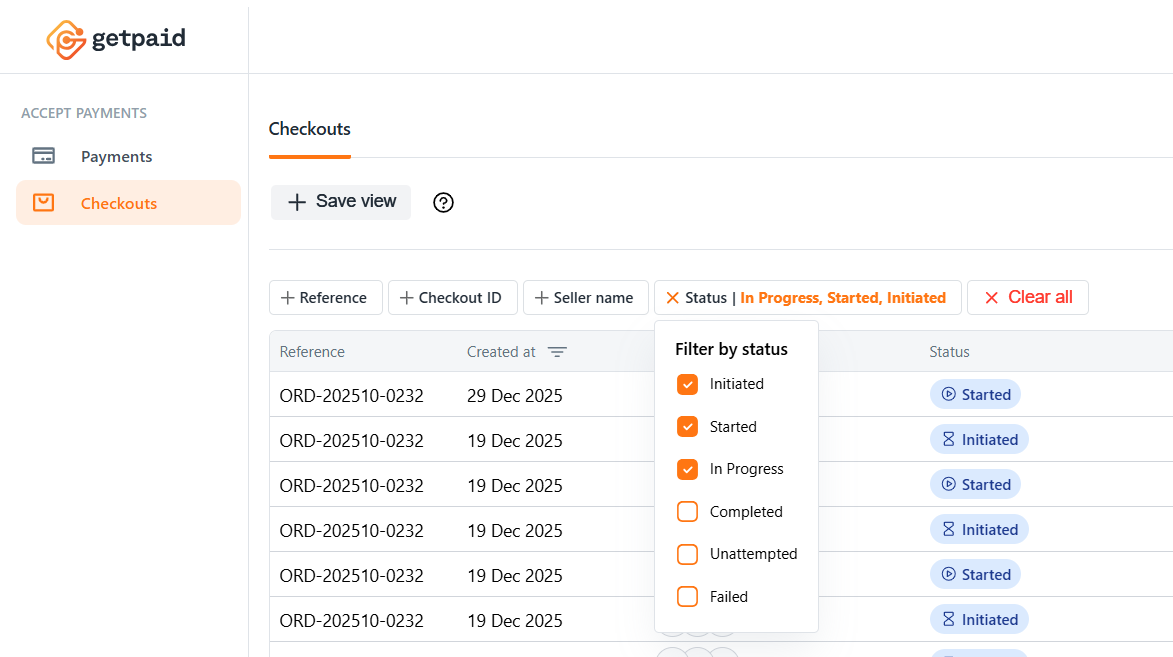
Filters narrow down your search results to only show resources that match your criteria. Use filters to find specific transactions, such as payments from a certain date range, with a particular status, or for a specific amount.
Each resource type supports different filter options. For example, you can filter payments by creation date or status, while other resources may have their own set of available filters.
- Dashboard
- API-only
To query the different resources, call the corresponding POST api.getpaid.io/v2/{resource_type}/query
operation.
The API reference includes dedicated query operations for checkouts, payments, applications, and accounts.
Getpaid API exposes a POST endpoint for querying instead of a GET to reuse the filtering and sorting of queries for exports and analytics, allow creating more advanced queries, and create a stored result based on the idempotency mechanism in POST requests.
While the structure of the request is the same for all resources, each resource type exposes different filters blocks with field-specific filtering operations (contains, exact match, etc.).
In this example, the resources being queried are checkouts.
{
  "type": "checkouts",
  "first": 10,
  "filters": {
    "seller_legal_name": "garage",
    "statuses": [
      "initiated",
      "started",
      "in_progress"
    ]
  },
  "sorts": [
    [...]
  ]
}
2. Sorting
You can sort by one or more fields, choosing to sort each field in ascending or descending order.
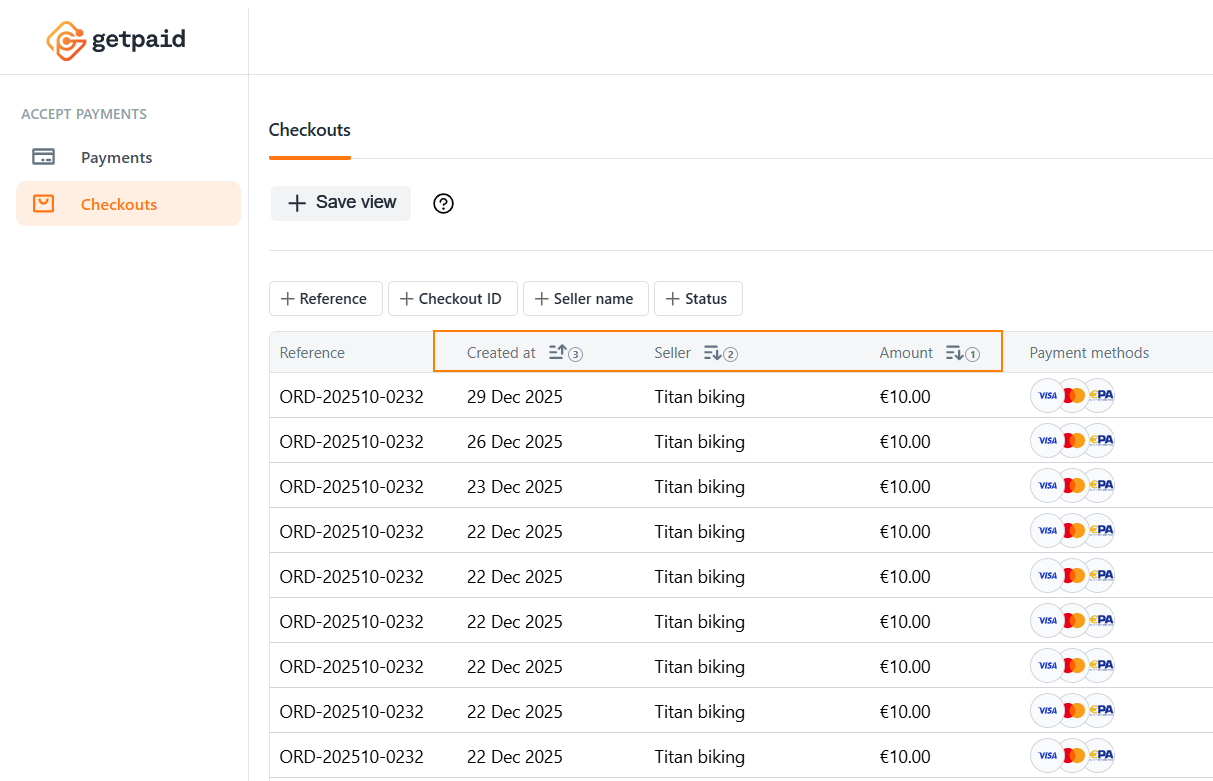
When sorting by multiple fields, the order matters. Results are first sorted by the primary field, then within groups of identical values in that field, results are sorted by the secondary field, and so on. This allows for hierarchical sorting where secondary sort criteria act as tiebreakers.
- Dashboard
- API-only
Sortable columns have a display hint near the column name.
When sorting by those columns, the sorting order and direction for each column sorted is also displayed.
The order of items in the sorts array determines the sorting hierarchy. Results are sorted by the first criterion, then by subsequent criteria for items with matching values.
{
  "type": "checkouts",
  "first": 10,
  "filters": {
    [...]
  },
  "sorts": [
    {
      "field": "created_at",
      "direction": "descending"
    },
    {
      "field": "seller_legal_name",
      "direction": "ascending"
    }
  ]
}
3. Select fields
- Dashboard
- API-only
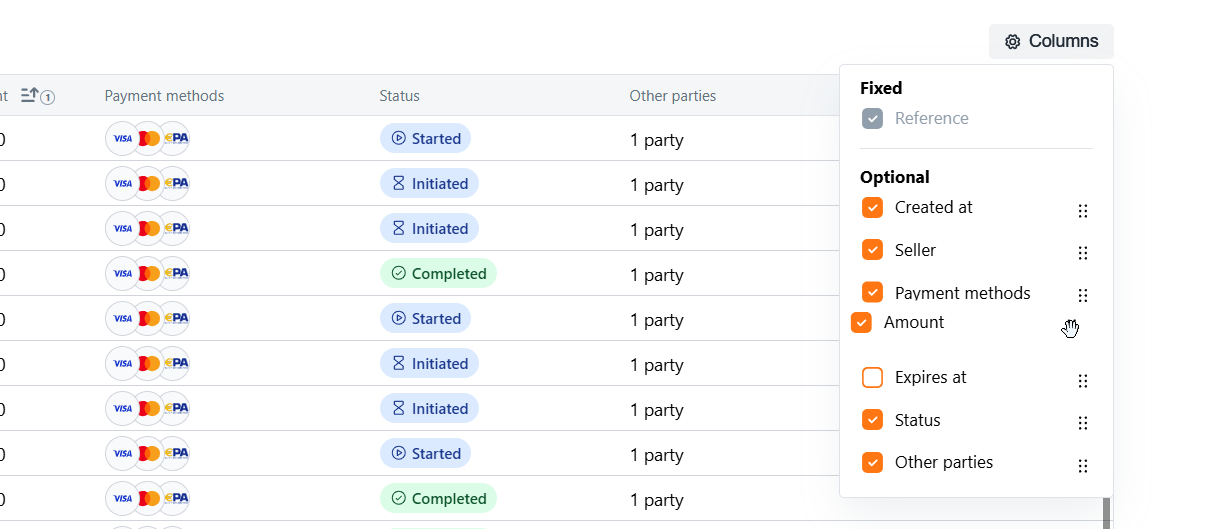
Column order and visibility can be configured for each table in the Getpaid Dashboard. Your configuration is saved automatically. For multiple configurations, you can use quick views.
The query endpoints do not support field selection at this stage. If this is a feature your integration requires, please contact support@getpaid.io for further discussion.
4. Handle and paginate results
- Dashboard
- API-only
The Getpaid Dashboard uses infinite scroll, progressively loading subsequent items as you scroll. Once all items matching your search criteria have been retrieved, the total count is displayed to indicate the end of results.

Query results are always returned in the data array. Each resource type has its own structure.
{
  "type": "checkouts",
  "cursor": "Q3VyaW9zaXR5IEtpbGxlZCB0aGUgQ2F0Cg==",
  "data": [
    [...]
  ]
}
The first field in your request determines the maximum number of items returned. To retrieve additional pages, repeat the same request with the after field set to the cursor value from the previous response. See how pagination works in the Getpaid API for further details.
{
  "type": "checkouts",
  "cursor": "Q3VyaW9zaXR5IEtpbGxlZCB0aGUgQ2F0Cg==",
  "data": [
    {
      "id": "chk_4y7kptsvn11qq6d354g5tx735v",
      "reference": "ORD-202510-0232"
      [...]
    },
    {
      "id": "chk_4y7kptsvn11qq6d354g5tx736w",
      "reference": "ORD-202511-0133",
      [...]
    }
  ]
}
{
  "type": "checkouts",
  "first": 10,
  "after": "Q3VyaW9zaXR5IEtpbGxlZCB0aGUgQ2F0Cg==",
  "filters": {
    [...]
  },
  "sorts": [
    [...]
  ]
}
5. Get resource details
For each item in the query results, you can retrieve full details for that specific resource.
- Dashboard
- API-only
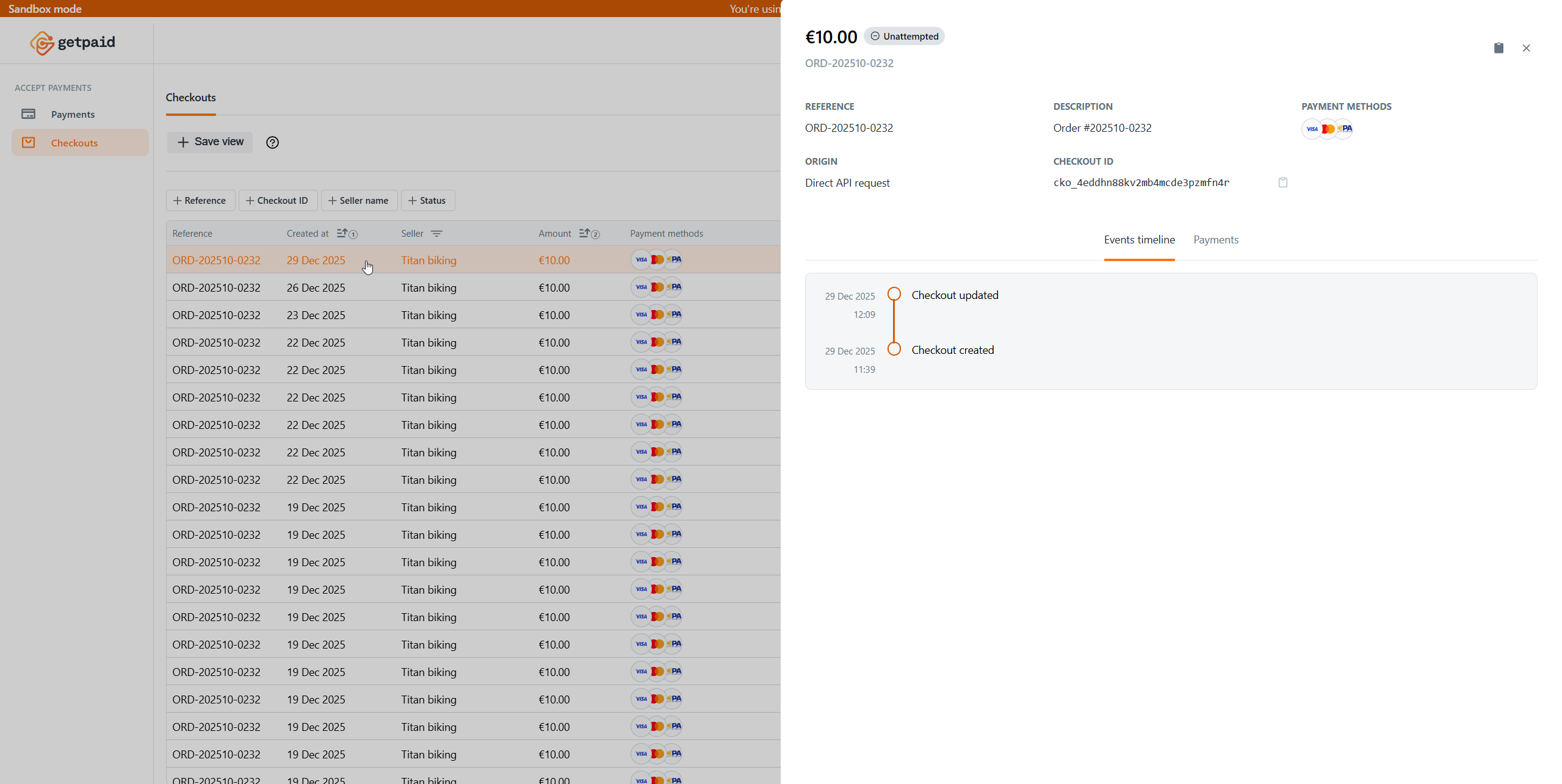
Click on any row in the results list to open the details pane and view complete information about that resource.
Query results always include the id field for each item. Depending on the resource type, you can use that id
with the corresponding resource endpoint to retrieve more details.
{
  "type": "checkouts",
  "cursor": "Q3VyaW9zaXR5IEtpbGxlZCB0aGUgQ2F0Cg==",
  "data": [
    {
      "id": "chk_4y7kptsvn11qq6d354g5tx735v",
      "reference": "ORD-202510-0232"
      [...]
    },
    [...]
  ]
}
In this example, for checkouts, use the id from the query results to call the GET api.getpaid.io/v2/checkouts/{checkout_id} endpoint to retrieve full details.
{
  "id": "chk_4y7kptsvn11qq6d354g5tx735v",
  "reference": "ORD-202510-0232",
  "status": "completed",
  "created_at": "2025-10-10T06:43:39.355Z",
  "updated_at": "2025-10-10T06:44:34.843Z",
  [...]
  "splits": {
    [...]
  }
  [...]
}